It is asked frequently that “Why do I need iPhone backup extractor? As you know, I have iTunes backup files.” I will answer this question with three reasons. Firstly, to protect personal privacy, iTunes backup is a kind of SQLITEDB file that is unreadable to us. Secondly, without an iPhone backup extractor, you only can restore the whole contents to your iPhone, single photos and contacts are not permitted. Thirdly, you will lose the newly added data on your iPhone when you choose to restore from iTunes because what you can get is the last iTunes backup you made. That’s why you need a third-party tool to extract iTunes backup files to avoid the troubles mentioned above.
아이폰 데이터 복구 is such an impressive software that can parse these unreadable iTunes backup files for you and it allows you to preview and recover lost data selectively. Additionally, it does no harm to the current data. This software can extract contacts, call history, calendar events, notes, voice memos, SMS, iMessage messages, and even App data easily from iPhone, iPad, and iPod touch backup automatically.
Please download the Windows version or Mac version trial iPhone Data Recovery here and have a test.
How to Extract iPhone Backup Files from iCloud/iTunes
Step 1: Launch iPhone Data Recovery
Run the program without launching iTunes. Please pay extra special attention that you shouldn’t plug an iPad, iPhone, or iPod into a PC.
Step 2: Highlight a device you have ever synced with iTunes
선택하다 “Recover from iTunes Backup File” and a list will show the devices which you have ever synced with iTunes. Choose the one you need by clicking it.

Note: To export data from iCloud backup is the same. You can select “ Recover from iCloud Backup File ” to go on.
Step 3: Click “Start Scan”
딸깍 하는 소리 “Start Scan” to go ahead. The program will extract iTunes backup automatically.
Step 4: Preview backup files
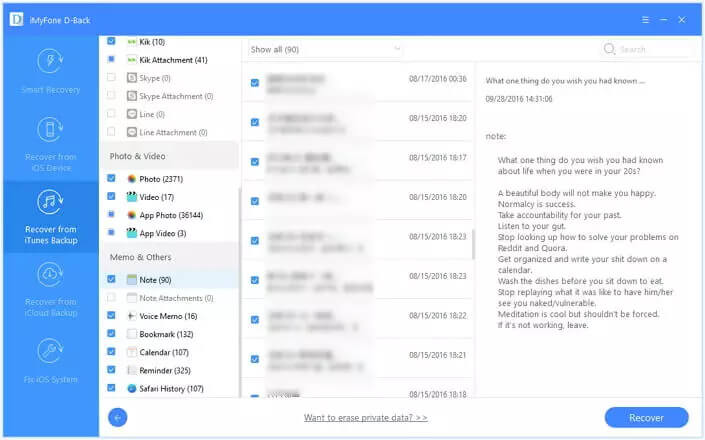
The extracted backup files will be listed in categories. You can choose any category from the left sidebar and the corresponding contents will show in the right window. You can also click “Only display the deleted item(s)” at the top of the table to save time and effort.
Step 5: Extract files of backup
딸깍 하는 소리 “Recover” after choosing what you need.
아이폰 데이터 복구 can rescue all you need from your iDevice with zero quality loss. Now, you must have extracted data from the iPhone backup on the computer. For avoiding losing data again, you are advised to do a backup on the computer, too. It is always a better way to do a backup than any other insurance.
How to Extract iPhone Backup from iOS Data Backup & Restore
If you have backed up via iOS Data Backup & Restore before, you can restore what you want from the backups. No matter how many backups you have done before, you still are able to restore them.
1. Launch “iOS Data Backup & Restore” to select “Backup & Restore” .
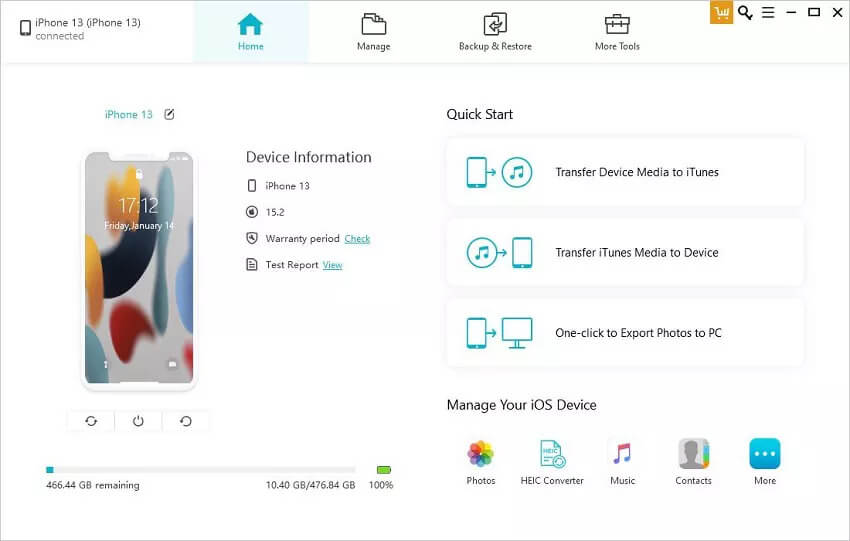
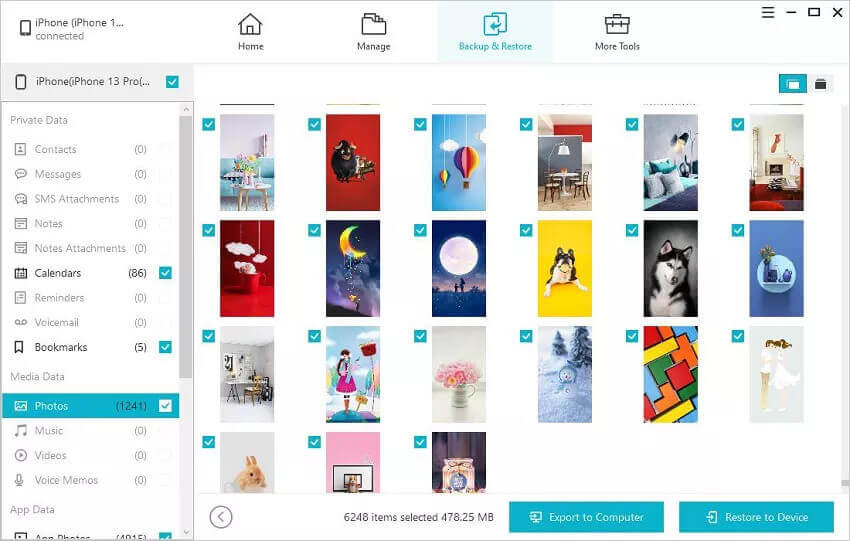
2. Preview the previous backups . Please select one of the backups to view. If it is locked, enter a password to unlock it.

3. When the backup is analyzed, all data will be displayed on the screen. After you have confirmed what you need, click “Export to Computer” or “Restore to Device” to extract the files.
이 게시물은 얼마나 유용했나요?
별을 클릭해서 평가해 주세요!
평균 평점 / 5. 득표수: